How to Track Your Finances Without Linking Your Bank Account
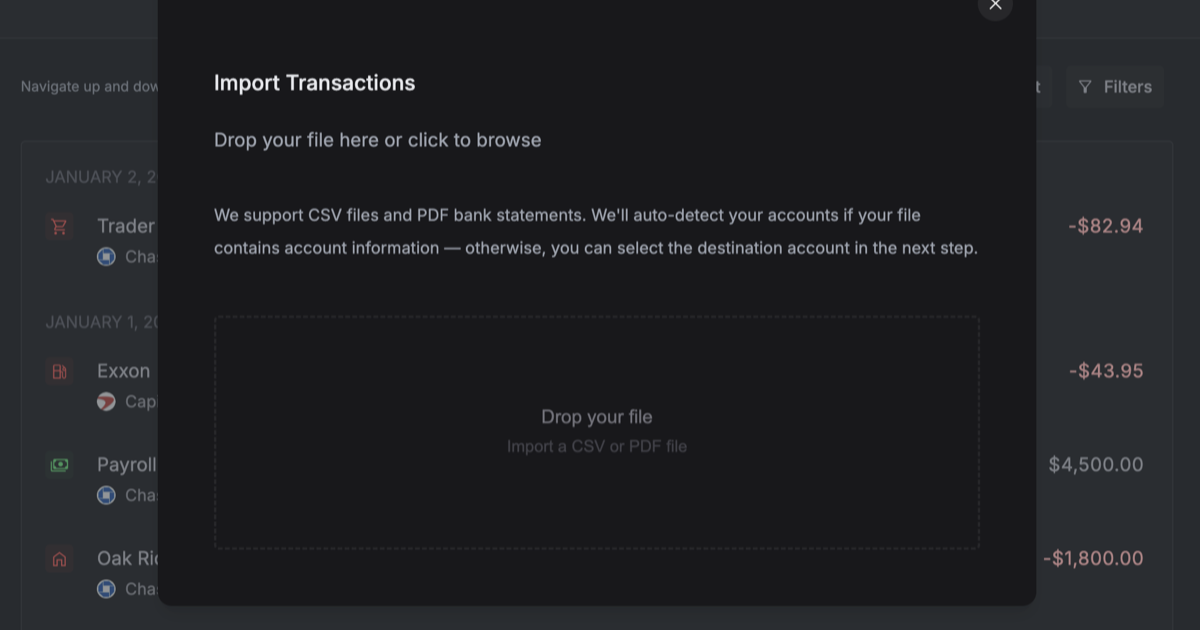
Don't want to share your bank login? Import transactions via CSV. Full privacy, no third-party access, auto-categorization included.
Not everyone wants to connect their bank. We get it.
Maybe you don't trust third-party access to your accounts. Maybe you've dealt with connections that break every few weeks. Maybe you just want complete control over your financial data.
Whatever the reason, Nexafin lets you track your complete financial picture without ever sharing your bank login.
Why Skip Bank Linking?
Connecting accounts through services like Plaid is convenient, transactions sync automatically, balances update daily. But it's not for everyone.
Privacy-conscious users don't want to grant any third-party access to their bank, even read-only. That's a legitimate concern, and we respect it.
Frustrated re-authenticators know the pain. Some bank connections break every few weeks, demanding you log in again, verify with SMS codes, and re-authorize access. For certain banks, it's more hassle than it's worth.
Security-first thinkers prefer to keep their bank credentials completely isolated. Manual import means your bank never knows Nexafin exists.
Users with unsupported banks may find their specific institution isn't covered. Nexafin connects to 12,000+ institutions globally, including European banks via GoCardless. But if yours isn't on the list, manual import keeps you in control.
What You Can Import
Nexafin accepts CSV files from virtually any source:
- Bank CSV exports: Most banks offer "Download as CSV" in transaction history
- Credit card exports: Same deal, look for the CSV download option
- Mint exports: Mint CSV format is automatically detected and mapped
The system automatically detects your file format and maps the columns. You don't need to reformat anything. If your bank only offers Excel files, just save them as CSV first.
How It Works
Step 1: Export from your bank
Log into your bank's website and look for "Download transactions" or "Export to CSV." Most banks offer this in the transaction history or statements section. Select your date range and download.
Step 2: Import into Nexafin
Open Nexafin and head to your Transactions page. Click Import (or just drag and drop your file).
Nexafin reads your file, detects the format, and shows you a preview of what will be imported.
Step 3: Confirm and categorize
Review the preview. Nexafin's auto-categorization kicks in immediately: groceries, subscriptions, utilities, income, all tagged automatically.
Hit confirm. Done.
Smart Duplicate Detection
Worried about importing the same transactions twice? Don't be.
Nexafin automatically detects duplicates based on date, amount, and description. If you import January's transactions on Monday and accidentally import them again on Friday, you won't end up with double entries.
This means you can export and import on whatever schedule works for you, weekly, monthly, whenever you remember, without tracking what you've already uploaded.
When to Use Manual Import vs. Bank Connection
Both options are valid. Here's how to think about it:
Choose Manual Import If... Choose Bank Connection If... You don't want third-party bank access You want fully automatic syncing Your bank connection keeps breaking Your bank stays connected reliably You want complete data control Convenience matters most Your specific bank isn't supported Your bank is in the supported listYou can also use both. Connect the accounts you're comfortable connecting, and manually import the rest. Prefer PDFs? You can also import bank and credit card statements directly. Nexafin doesn't force you into one approach.
The Tradeoff
Let's be honest: manual import requires some effort. You'll need to export and import periodically, maybe once a week, maybe once a month, depending on how current you want your data.
But for many users, that small effort is worth:
- Complete privacy from aggregation services
- No re-authentication headaches
- Works with any bank worldwide
- Full control over your financial data
You decide what works for your situation.
Start Tracking on Your Terms
Nexafin gives you visibility into your money: where it comes from, where it goes, what your net worth looks like over time. Whether that data comes through automatic sync or manual import, the insights are the same.
Your data. Your choice.
Ready to take control of your finances?
Track spending, monitor net worth, and gain clarity on your money.
Start Free Trial →